
CHEF iQ Troubleshooting: Fix Connection & Cooking Problems 2026
CHEF iQ Troubleshooting: Fix Connection & Cooking Problems 2026
Real fixes, sourced from CHEF iQ’s own support pages — not guesswork.
If your CHEF iQ Smart Cooker won’t connect, your iQ Sense probe won’t charge, or the app isn’t behaving the way it should, you’re not the only one. Most CHEF iQ problems fall into a handful of predictable categories, and most of them have a documented fix.
This guide covers CHEF iQ troubleshooting for connectivity, probe pairing, app quirks, and common cooking mistakes — all drawn from CHEF iQ’s official support and FAQ pages, not from invented fixes.
Find Your Problem Fast
Symptom, Cause, and Fix at a Glance
Start here if you just want the short version of common CHEF iQ troubleshooting fixes before reading the full breakdown below.
| Symptom | Likely Cause | Fix |
|---|---|---|
| Cooker won’t connect via Bluetooth | Out of range, or another device already connected | Move closer and disconnect any other paired phone/tablet |
| iQ Sense probe won’t charge | Residue on probe, or hub not charged | Clean the probe, reseat it in the charging nest, confirm hub power |
| App not sending notifications | Notification settings disabled | Check Settings and re-enable the notifications you want |
| Favorites won’t save | Outdated app version | Update the app or restart it |
| Cooker won’t come to pressure | Not enough liquid in the pot | Add at least 1 cup of liquid — this is required every time |
Bluetooth & WiFi Connection Problems
According to CHEF iQ’s own iQ Cooker FAQ, the most common connection issue is the pot failing to pair over Bluetooth. There are two things to check first: make sure your phone or tablet is within close range of the cooker, and confirm that no other smart device is already connected to the pot via Bluetooth — it can only hold one active connection at a time.
Once the connection is working, the app will display “set to [name of unit]” to confirm you’re paired and ready to start a recipe.
If Bluetooth Still Won’t Connect
Disconnect any other device that may already be paired, move within a few feet of the cooker, and try again before assuming there’s a hardware fault.
If WiFi Keeps Dropping
Other smart home devices on a crowded network can interfere with a stable connection — try temporarily turning off nearby smart devices if drops are frequent.
Probe Charging & Pairing Issues
The iQ Sense thermometer has its own set of documented quirks, most of which come down to charging contact and cleanliness rather than hardware failure.
Probe Won’t Charge
Check that the probe is clean — residue can interfere with charging — and make sure it’s seated snugly in the charging nest inside the hub, with the hub itself either charged or plugged in. If it still won’t charge after that, CHEF iQ support can arrange a replacement.
Can I Wrap It in Foil?
Yes, you can wrap the food in foil — CHEF iQ notes this is common when grilling ribs — but the end of the probe itself must stay exposed to keep its connection to the Smart Hub.
How Many Probes Can I Pair?
Up to three probes on a Gen 2 hub, and up to four on Gen 3, as long as each one is registered in the app first.
Can I Wash It in the Dishwasher?
The probe itself is waterproof and technically top-rack dishwasher safe, though CHEF iQ recommends hand-washing to avoid scratches. The Smart Hub is not waterproof — wipe it clean with a damp cloth only.
Notifications & Favorites Not Working
Two of the most common app-level complaints have simple, documented fixes:
- Not receiving notifications: Go into the app’s Settings menu and confirm which notification types are enabled — this is disabled more often by accident than by a bug.
- Favorites won’t save: Tap the heart icon to save a recipe; if it isn’t sticking, check the App Store or Google Play for a pending update, or simply restart the app.
Why a Cook Won’t Start or Come to Pressure
Pressure cooking always requires at least 1 cup of liquid in the pot — this is a hard requirement from CHEF iQ, not a suggestion, and skipping it is one of the most common reasons a cook fails to build pressure.
If you’re adjusting a Guided Cooking recipe’s ingredients, CHEF iQ’s own guidance is that most substitutions are fine, but you should never cut liquid out of a recipe, since this can prevent the pot from reaching pressure at all.
Preventing Problems Before They Start
A few habits go a long way toward reducing how often you need CHEF iQ troubleshooting steps in the first place.
- Keep the probe clean and dry before returning it to the charging nest.
- Wipe the Smart Hub with a damp cloth only — never submerge it.
- Register every probe in the app rather than assuming it will auto-pair.
- Check for app and firmware updates regularly, since some fixes ship as updates rather than manual steps.
- Never skip the minimum 1 cup of liquid for pressure cooking, even when adapting your own recipe.
If These Steps Don’t Fix It
If a probe still won’t charge, the hub won’t power on, or a connection issue persists after trying the steps above, CHEF iQ’s own support team is the right next step rather than continuing to troubleshoot blindly — especially for anything that might be a hardware fault still under warranty.
For a full breakdown of what’s actually covered and for how long, see our CHEF iQ warranty and long-term reliability guide before assuming a repair or replacement will be free.
How We Researched This Guide
Every fix in this CHEF iQ troubleshooting guide is drawn directly from CHEF iQ’s own official iQ Cooker and iQ Sense FAQ pages. We intentionally left out unverified error-code lists circulating on third-party sites, since we could not confirm they applied consistently across CHEF iQ’s hub generations.
CHEF iQ Smart Cooker
10-in-1 WiFi pressure cooker with a built-in scale
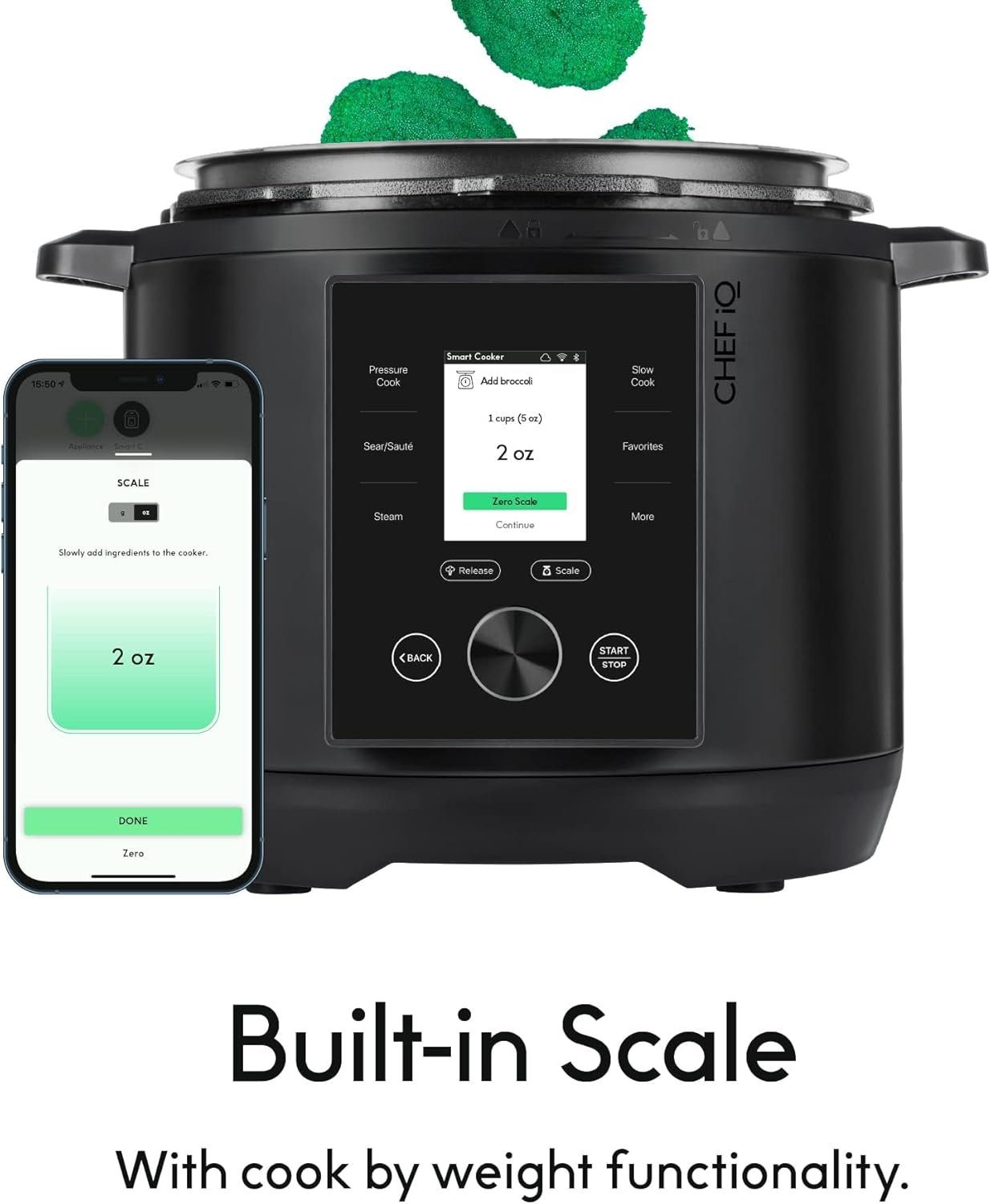
Still deciding whether the Smart Cooker is right for you in the first place? Read our full comparison of the best smart cooking appliances of 2026, or dig into how the CHEF iQ app and Guided Cooking system actually works day to day.
Frequently Asked Questions
Quick answers to the most common CHEF iQ troubleshooting questions.
Why won’t my CHEF iQ cooker connect to Bluetooth?
Stay within close range of the cooker and make sure no other phone or tablet is already connected to it via Bluetooth — the cooker only holds one Bluetooth connection at a time.
Why is my iQ Sense probe not charging?
Check that the probe is clean, since residue can affect charging, and confirm it’s seated snugly in the charging nest with the hub itself charged or plugged in. If it still won’t charge, contact CHEF iQ support.
Can I wrap the probe in foil while cooking?
Yes, you can wrap the food in foil, but the end of the probe must stay exposed to maintain its connection to the Smart Hub.
Why isn’t the CHEF iQ app saving my Favorites?
Check the App Store or Google Play for an app update, or try restarting the CHEF iQ app.
Can I wash the CHEF iQ Smart Hub with water?
No. The Smart Hub is not waterproof and should only be wiped clean with a damp cloth. The probe itself is waterproof and technically dishwasher-safe, though hand-washing is recommended to avoid scratches.
How many iQ Sense probes can I pair at once?
Up to three probes on Gen 2 hubs, and up to four probes on Gen 3 hubs, as long as each one is registered in the app.
Why won’t my cooker come to pressure?
Check that you’ve added at least 1 cup of liquid — pressure cooking requires this minimum every time, and skipping it is one of the most common causes of a failed cook.
Can I substitute ingredients without causing problems?
Most ingredient substitutions are fine, but never remove liquid from a recipe, since this can prevent the pot from reaching pressure.
Bottom Line: Most CHEF iQ Problems Have Simple Fixes
Working through CHEF iQ troubleshooting doesn’t have to mean guessing — most issues fall into one of three buckets.
Connection issues: Almost always range or a competing Bluetooth connection — rarely a hardware fault.
Probe issues: Usually charging contact or cleanliness, not a failed unit.
Cooking issues: Nearly always traced back to the 1-cup minimum liquid requirement.
If you’ve worked through the relevant section above and the problem persists, that’s the point to contact CHEF iQ support directly rather than keep guessing.
More on the CHEF iQ Ecosystem
- CHEF iQ vs Instant Pot Pro: Which Smart Pressure Cooker Is Better? — side-by-side comparison covering smart features, cooking performance, app experience, and overall value.
- CHEF iQ Smart Cooker Review 2026: Full Hub Guide — our complete research-based review of the cooker itself.
- CHEF iQ Warranty, Reliability & Long-Term Cost Breakdown — what’s actually covered if a fix doesn’t work.
- CHEF iQ App Guide: Ultimate Guided Cooking Walkthrough — how Guided Cooking, Shoppable Recipes, and the app fit together.